
Just the recipe
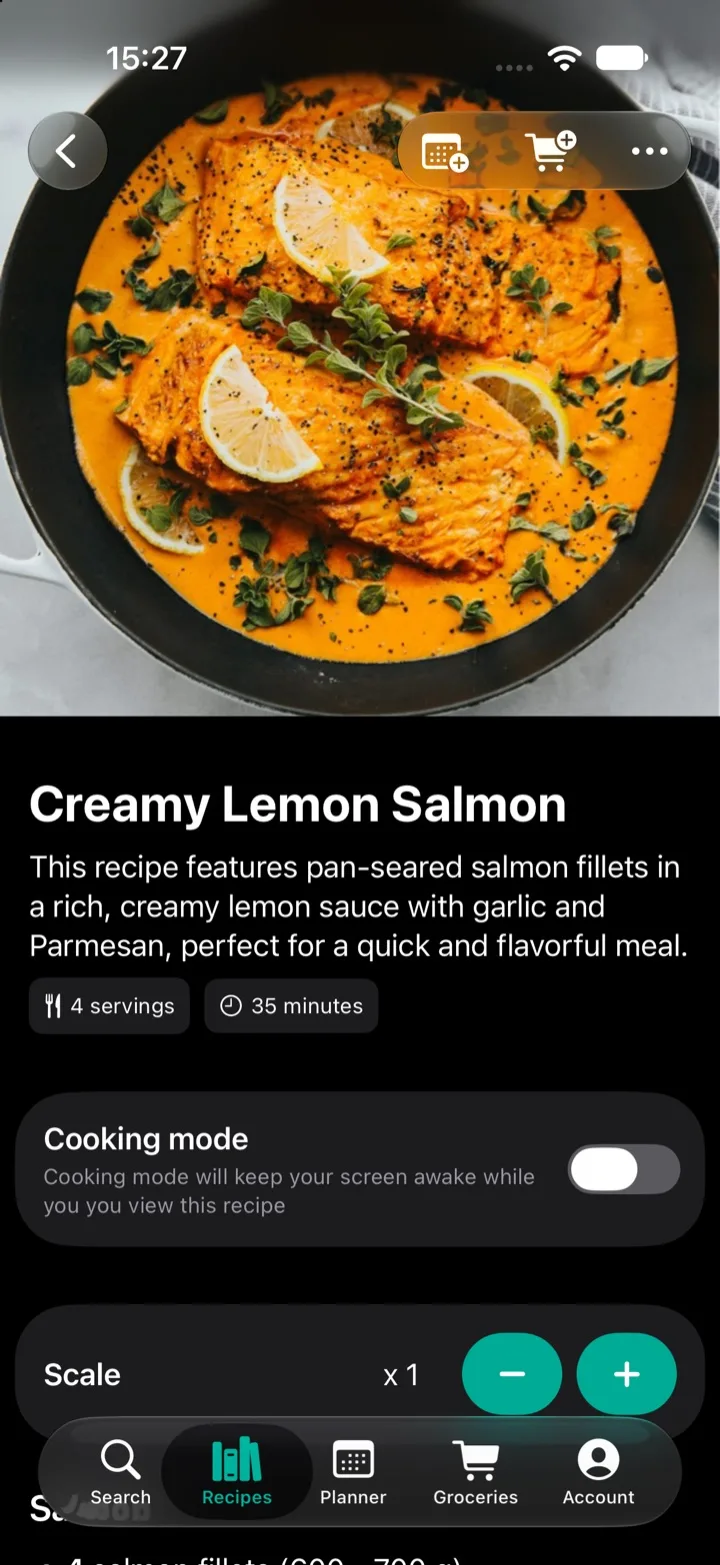
When you import a recipe, My Recipe Pad pulls out the parts you cook from: the title, the ingredients with their amounts and units, and the steps. What's left is a clean recipe without ads, pop-ups or long introductions, saved in your own library.
Because the ingredients are understood rather than copied as plain text, you can scale the servings and send ingredients to your grocery list, sorted by category.
Save a recipe from Safari
- Open the recipe page in Safari, or any other browser, and tap Share.
- Choose My Recipe Pad in the share sheet. The import starts right away.
- Check the recipe and save it to your library.
Or paste a link
- Copy the link to the recipe.
- Open My Recipe Pad, go to the Recipes tab, tap + and choose Import recipe.
- Tap Paste, then Start import.
Find new recipes without leaving the app
Looking for something new? Search the web from inside My Recipe Pad, open a recipe that looks good and save it straight to your library.
Works in your language
A lot of recipe importers struggle with anything that isn't in English. My Recipe Pad understands ingredients, amounts and units in practically any language, so your favorite Norwegian, Swedish, Danish or Polish food blogs import just as cleanly.
Step-by-step with screenshotsRead the full guide in the Help CenterQuestions
- Which websites does it work with?
- Practically any website with a recipe on it, from big recipe sites to small food blogs. If one doesn't import correctly, send the link to support@sparkleap.io and we'll take a look.
- Does it work with recipes in other languages?
- Yes. The importer understands ingredients, amounts and units in practically any language.
- Can I edit a recipe after importing it?
- Yes. Every part of the recipe can be edited, and you can add your own notes.